Tracing a requirement to its test
Two Moors boards for stakeholder needs and system requirements, plus development and test boards: every requirement has a known source, the work that satisfies it and the test that verifies it, and the reviewed set is frozen as a baseline and approved.
A systems engineering team is building brake controller software. The customer wants to see where each requirement comes from, which work satisfies it and which test verifies it, and the set agreed at the review must not change quietly afterwards. At the end of this scenario the stakeholder needs and the system requirements sit on two Moors boards at their own levels, the system specification reads with section numbers, the development and test boards are linked to the requirements, gaps show in one click and there is a reviewed and approved baseline.
Steps
- 1In the new board dialog, create two requirements boards with the "Moors (Requirements)" card: one with "Level" set to Stakeholder needs (short code STK, say) and one with System requirements (REQ, say). Create two separate Kanban or Scrum boards for development and test work (SWD and TST, say). Make the same team members of all four boards: a link needs membership at both ends and the "Edit tasks (fields, attachments, links)" permission on the board of the task you link from; a Viewer sees links but cannot add them.
- 2Enter the stakeholder needs on the STK board; on this level Coverage does not look for a source. Enter the system requirements on the REQ board or import them from Excel, and build the document with the Heading, Information and Requirement types (nested with "Parent task"); the Specification tab reads it with section numbers. Link every system requirement to the stakeholder need on the STK board with "derived from", which gives it its source (sitting under a Heading does not count as a source, sitting under a parent requirement does). Fill in the Source, Verification Method, Requirement Class and Criticality attributes. Picking a parent task needs the "Manage subtasks" permission.
- 3Link every task on the development board to the requirement it satisfies with the "satisfies" type, using "Add Link" in the Linked Items section of the task screen. Link every test on the test board to the requirement it verifies with the "verifies" type. The link dialog spells out the direction you chose; if you need the reverse, pick "satisfied by" or "verified by".
- 4Open the Coverage tab of the REQ board. The "No source", "Not implemented" and "Not verified" filters list the requirements with gaps; clicking a task or test in a row opens it on the same screen.
- 5On the Matrix tab (in the "More" menu), pick the test board as "Target board". The cells show which requirement is verified by which test; "Unlinked items" lists tests that verify no requirement.
- 6When the set is ready, freeze it with "New baseline" on the Baselines tab (in the "More" menu; "SRR - System Requirements Review", say; the first baseline gets the code 1.0). Optionally collect comments first with "Start Review" (a comment can be tied to a single requirement from the quote box), then choose the approvers with "Request Approval"; the order can be enforced under Board Settings > General > "Review and approval order for baselines". An approved baseline or one with a review cannot be deleted, and a pending one only after its approval request is cancelled. Creating a baseline needs the "Board configuration: fields, issue types, versions, templates, calendar" permission, and requesting approval needs "Request approval" in your role; approvers must be members of the Moors board with "Approve and reject" in their role.
- 7A requirement in the Approved status is locked: changing it needs the "Edit tasks in a locked status" permission or moving the status back. If a requirement’s title, description or attributes change later (the tracked fields are chosen under Board Settings > General > "Fields tracked for suspect links"), the work and test links attached to it become "Suspect". Find them with the "Suspect link" filter on the Coverage tab, review the task or test at the other end of the link and mark the link "Reviewed".
- 8To show the customer what changed, compare the baseline with the "Current state" and download the result as Excel or CSV.
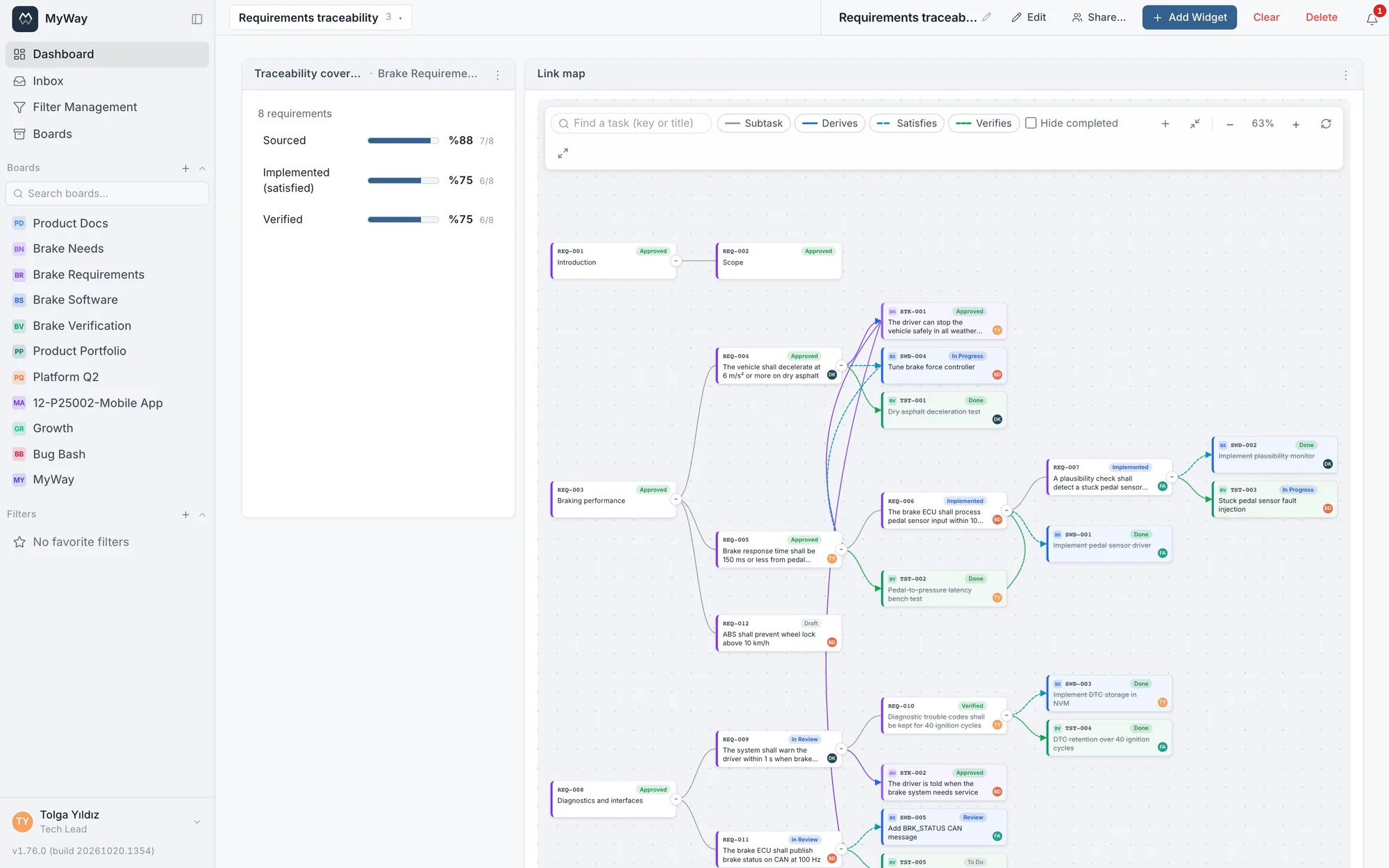
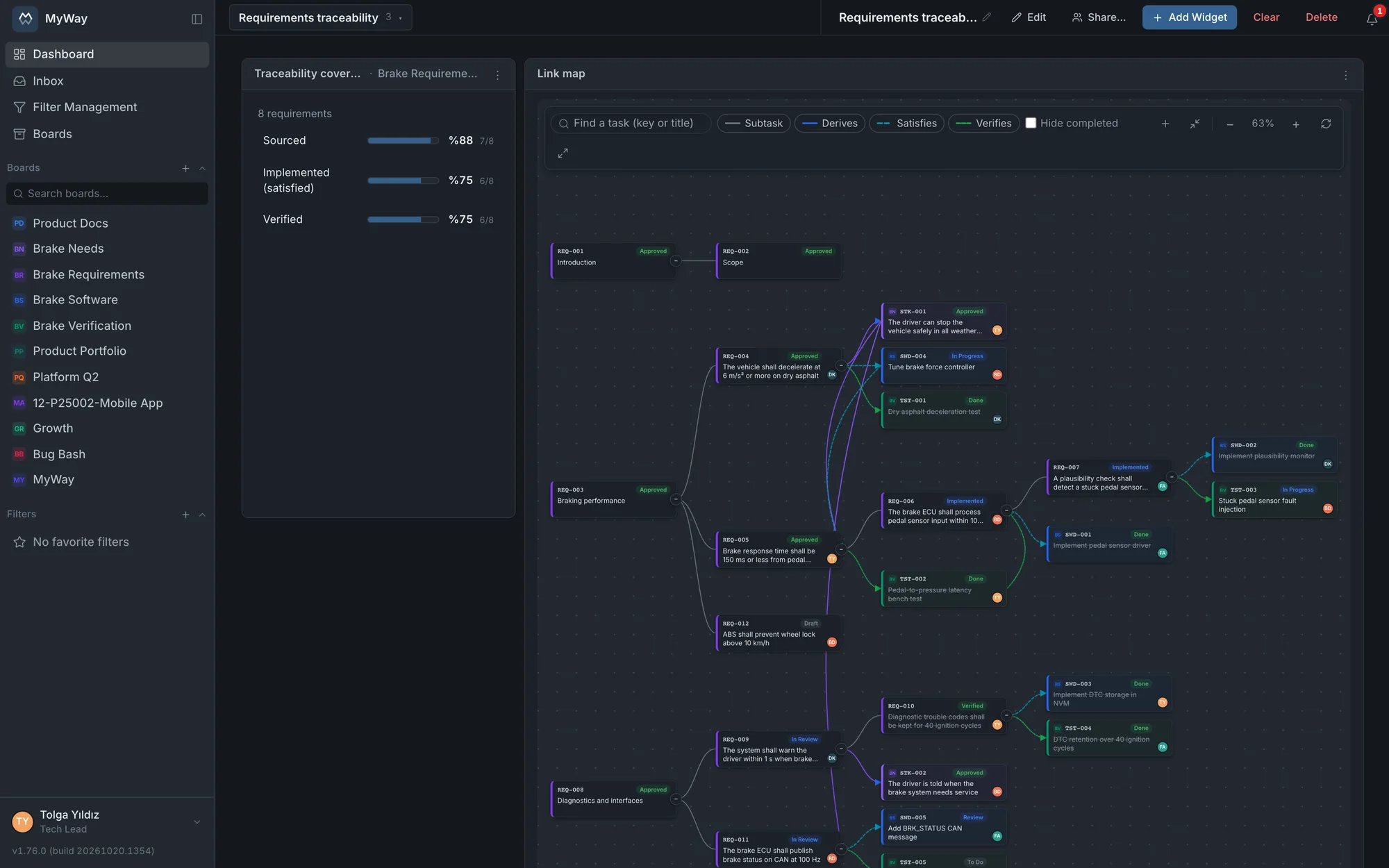
Why it works this way: because a requirement is kept as a task rather than in a separate tool, the workflow, approval lock, history and import are not set up twice; developers and test engineers keep working on their own boards and the trace is carried by links. To see the hierarchy on a link map, add a "Link map" card to a dashboard and pick the Moors board as its root board; the "Traceability coverage" card on the same dashboard follows the coverage shares.
Related pages: Moors: requirements management, Dashboards & widgets, Import & export, Quality standards.