Moors: requirements management
Specification levels, a document structure with section numbers, traceability links, coverage, a matrix, suspect links and baselines that go through review and approval.
Moors is MyWay’s requirements management board (introduced in v1.74.0, extended in v1.76.0). A requirement is a task on this board: its permanent ID (like REQ-42), workflow (In Review and Approved statuses with an approval lock), fields, the parent hierarchy that builds the document structure, history and Excel/CSV exchange all come from the task screen; the approval chain and formal review are for baselines. Two things are specific to Moors: a structure that reads the specification like a document (the Specification view and section numbers), and a traceability layer that ties a requirement to the need above it, the development work that satisfies it and the test that verifies it (link types, a coverage report, a matrix, suspect links, baselines with version codes). One Moors board is one specification; development and test work stays on its own Kanban or Scrum boards and links run across boards.
Creating a Moors board
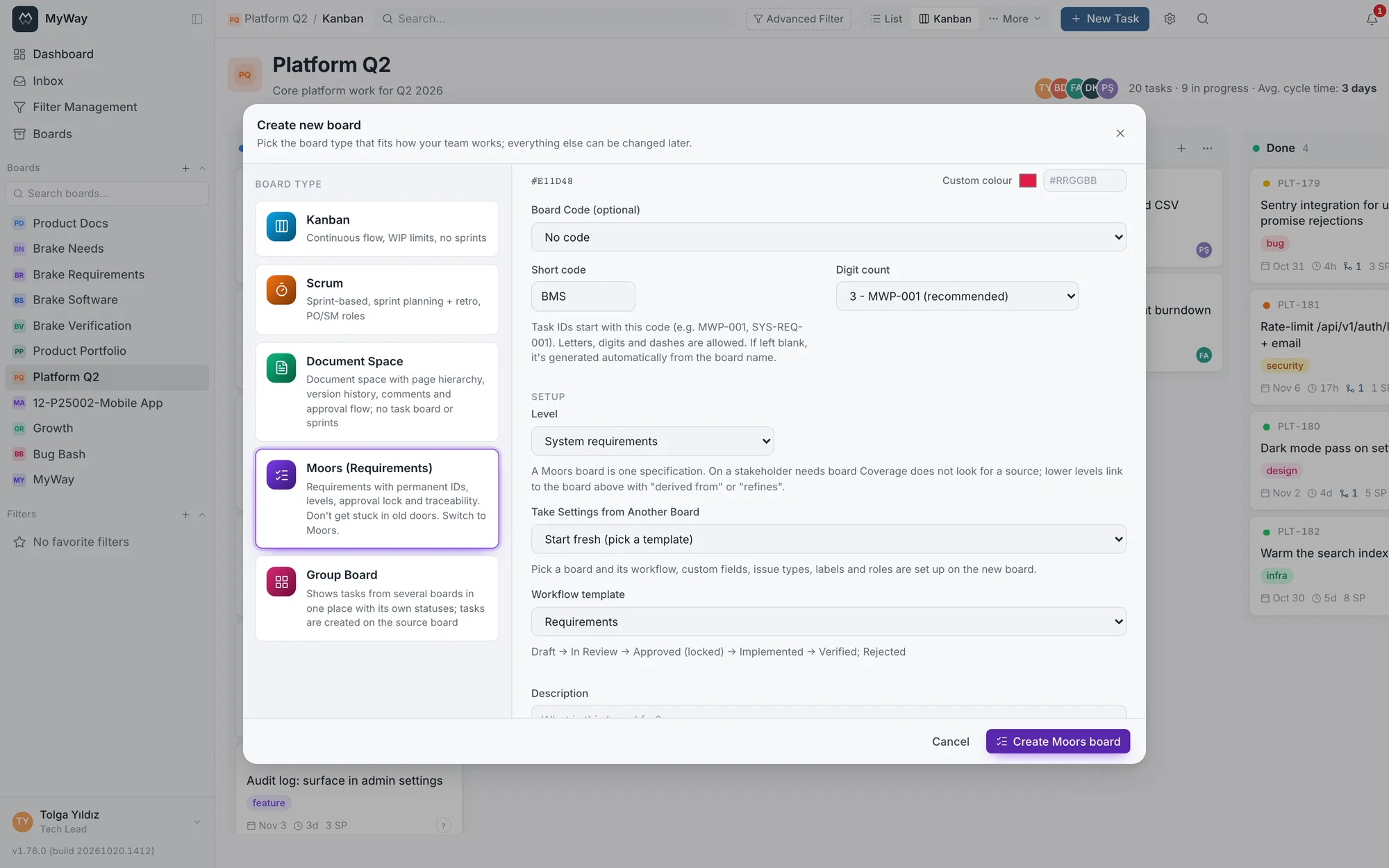
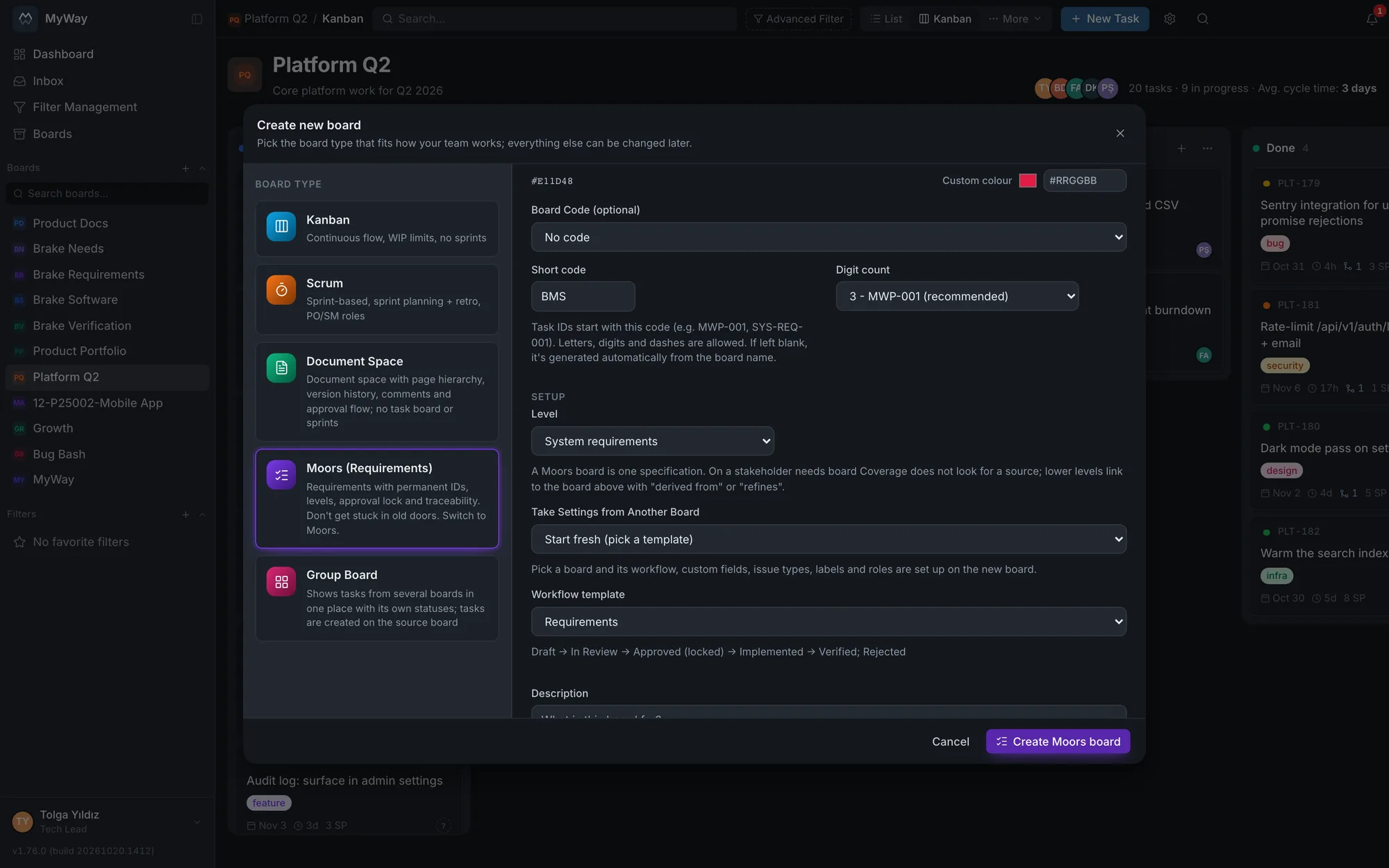
In the new board dialog opened from the "+" in the sidebar, pick the "Moors (Requirements)" card. With the card picked, a "Level" field appears: Stakeholder needs, System requirements, Subsystem requirements, Software requirements, Hardware requirements, Interface requirements or Other (System requirements by default). The level can be changed later under Board Settings > General > "Specification level". The preview on the right of the dialog shows the board name, colour and first task key. Creating boards is reserved for workspace admins. A new Moors board comes with the setup below; all of it consists of ordinary records that can be changed in Board Settings:
| What | Comes with the board |
|---|---|
| Workflow | Draft, In Review, Approved, Implemented, Verified, Rejected. "Editing is locked for tasks in this status" is on for Approved: changing an approved requirement needs "Edit tasks in a locked status" or moving the status back |
| Level (board setting) | The level picked in the new board dialog. On a stakeholder needs board Coverage does not look for a source; on other levels every requirement is expected to link to a higher-level requirement |
| Issue types | Requirement, Heading and Information. Heading and Information build the document structure and do not count as requirements; neither can be deleted, both can be renamed. The built-in Epic, Story, Task and Bug types are not set up |
| Attributes (custom fields) | Source (text: the customer document, standard or stakeholder the requirement comes from), Verification Method (Test, Analysis, Inspection, Demonstration), Rationale (multi-line text), Acceptance Criteria (multi-line text), Requirement Class (Functional, Performance, Interface, Safety, Security, Design Constraint, Environmental, Usability, Regulatory), Criticality (High, Medium, Low) |
| Built-in fields | Priority and Story Point come switched off (Criticality takes the place of priority on Moors); they are not deleted and can be switched on under Board Settings > Task Screen > Fixed fields |
| Views | List (the main view), Specification and Coverage in the top bar; Baselines, Kanban, Matrix and Releases under "More". There are no sprints, backlog or planning, and sprint permissions do not appear in the role settings |
- Status, type and attribute names come in the interface language (Turkish or English) of the person who creates the board
- No labels are set up on a Moors board; built-in labels such as Bug or Feature mean nothing on a requirement
- The setup above comes when the workflow template in the new board dialog is "Requirements" (the default). With the "Simple" template the Moors statuses are not set up; when the board is created by taking settings from another board, the workflow, fields, issue types and the on/off state of Priority and Story Point are copied from that board and the Moors setup is not added. Even from a Moors board, the copied Heading and Information types lose their document-structure behavior and count as requirements, so create a new Moors board with the "Requirements" template
- An existing board can be switched to Moors under Board Settings > General. That turns on the tabs and traceability screens but does NOT add the statuses, types and attributes above, nor switch off Priority and Story Point; those come only with a newly created board. The level stays "Not set (Stakeholder Need type counts as top level)" and is picked under Board Settings > General > "Specification level". Every task except Heading and Information counts as a requirement, including tasks of the built-in Epic, Story, Task and Bug types. The Rejected status is not recognized either: rejected tasks are counted in coverage and the matrix
- Moors boards created before v1.76.0 keep working with the types they were set up with (Stakeholder Need, System Requirement, Subsystem Requirement, Software Requirement, Interface Requirement). On a board with no level set, Coverage recognises the top level by the Stakeholder Need type and rejected requirements by the Rejected status. Recognition goes by record ID: renaming does not break it, deleting and recreating under the same name does; for that reason the Stakeholder Need type cannot be deleted
Levels and document structure
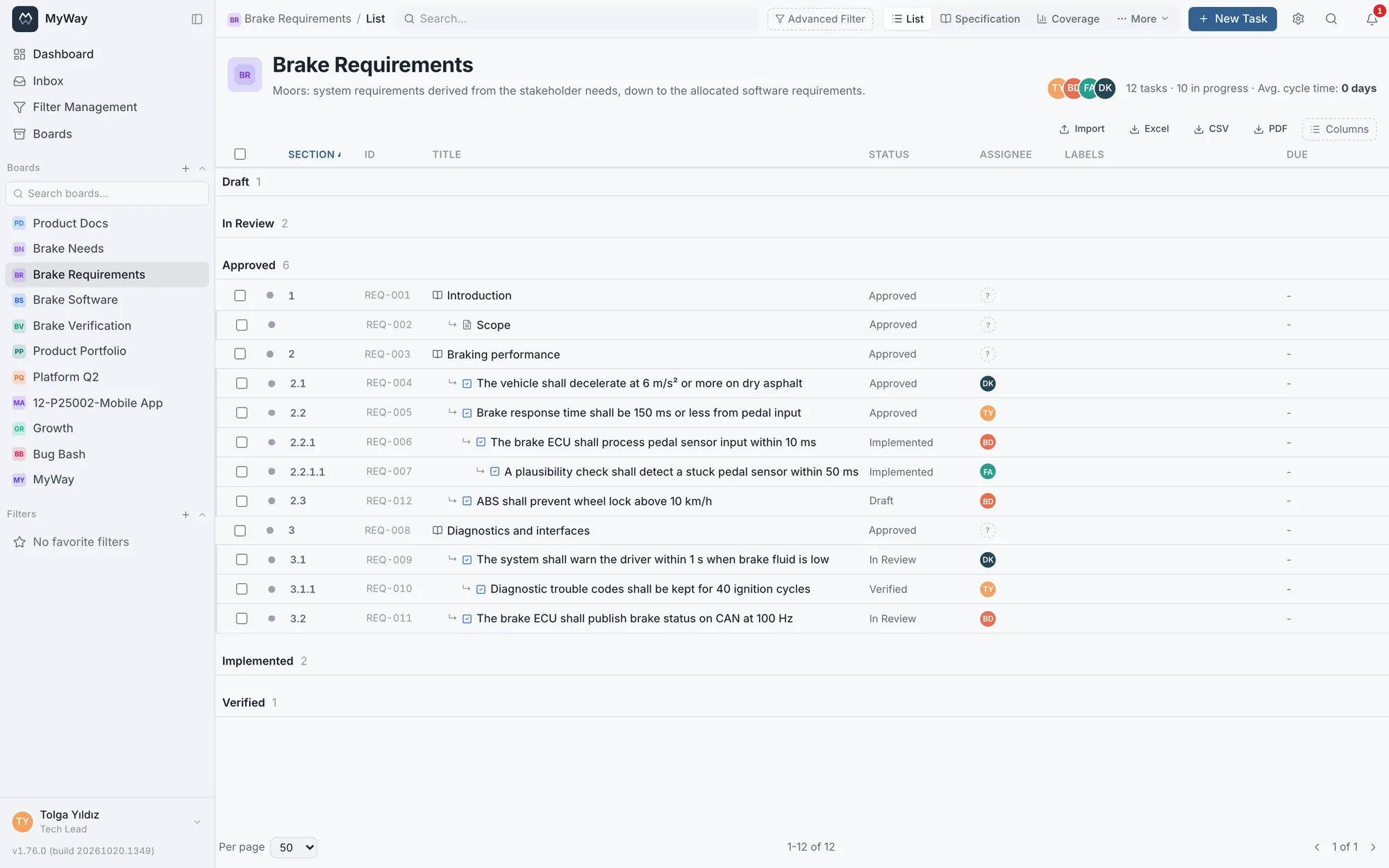
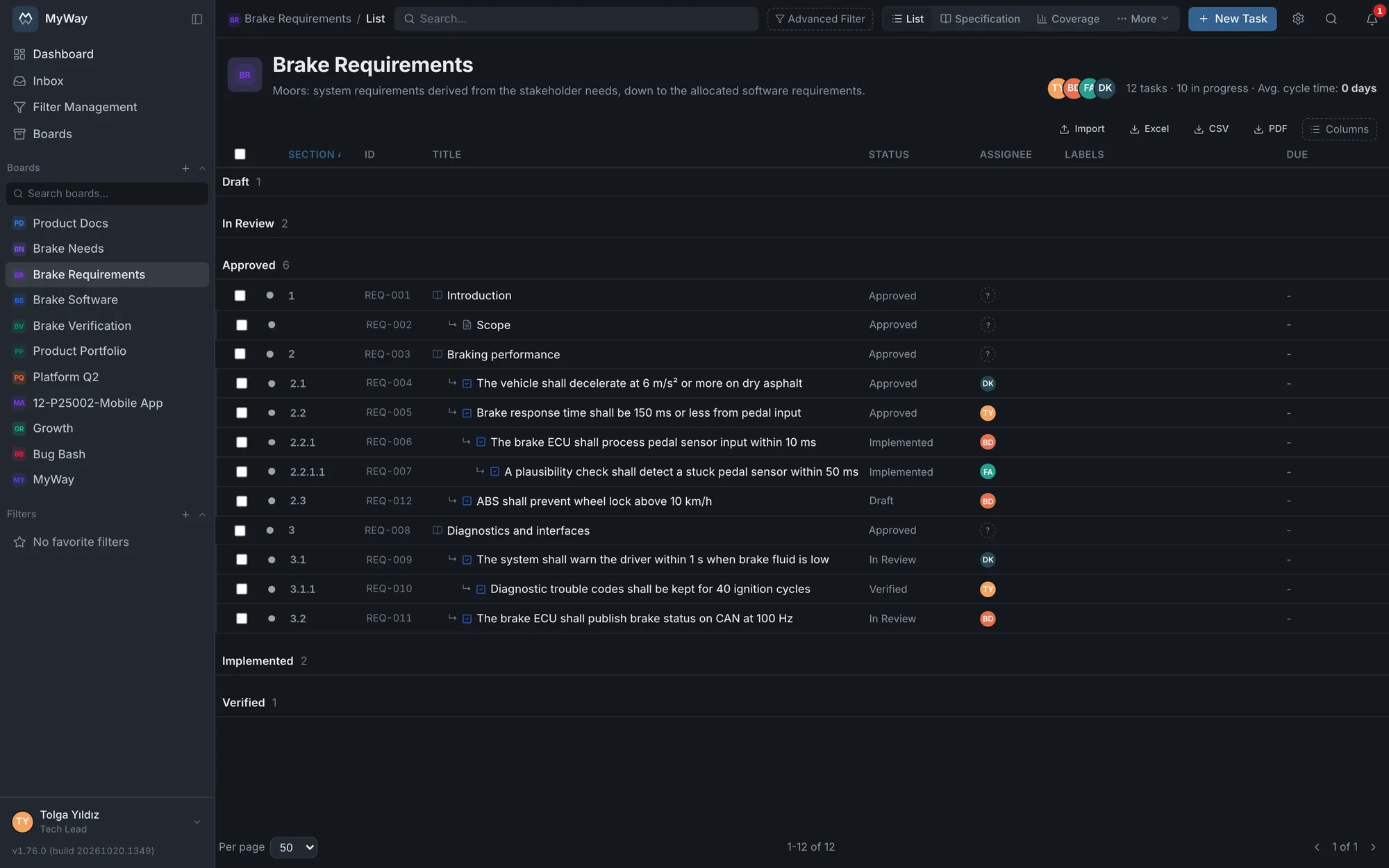
Levels (stakeholder need, system, subsystem, software...) are separate Moors boards: stakeholder needs on an STK board and system requirements on a REQ board, say. A lower-level requirement links to a requirement on the board above with "derived from" or "refines". The structure inside a board is the document structure: requirements, Heading and Information items are nested with "Parent task". A child requirement allocated from a system requirement can also sit under it on the same board. The "parent of / child of" link cannot be picked on a Moors board; existing links of that kind are kept and shown.
Specification and section numbers
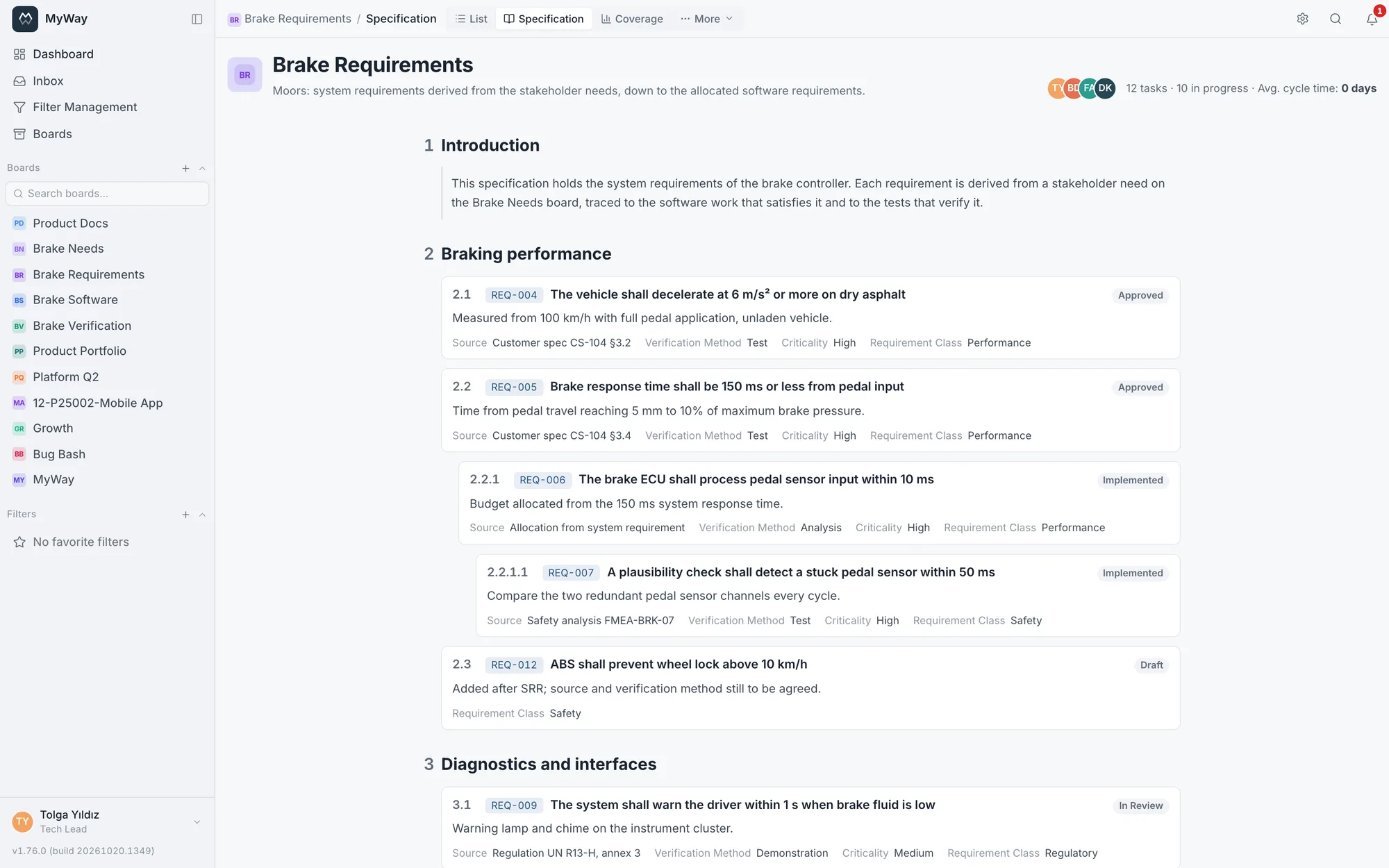
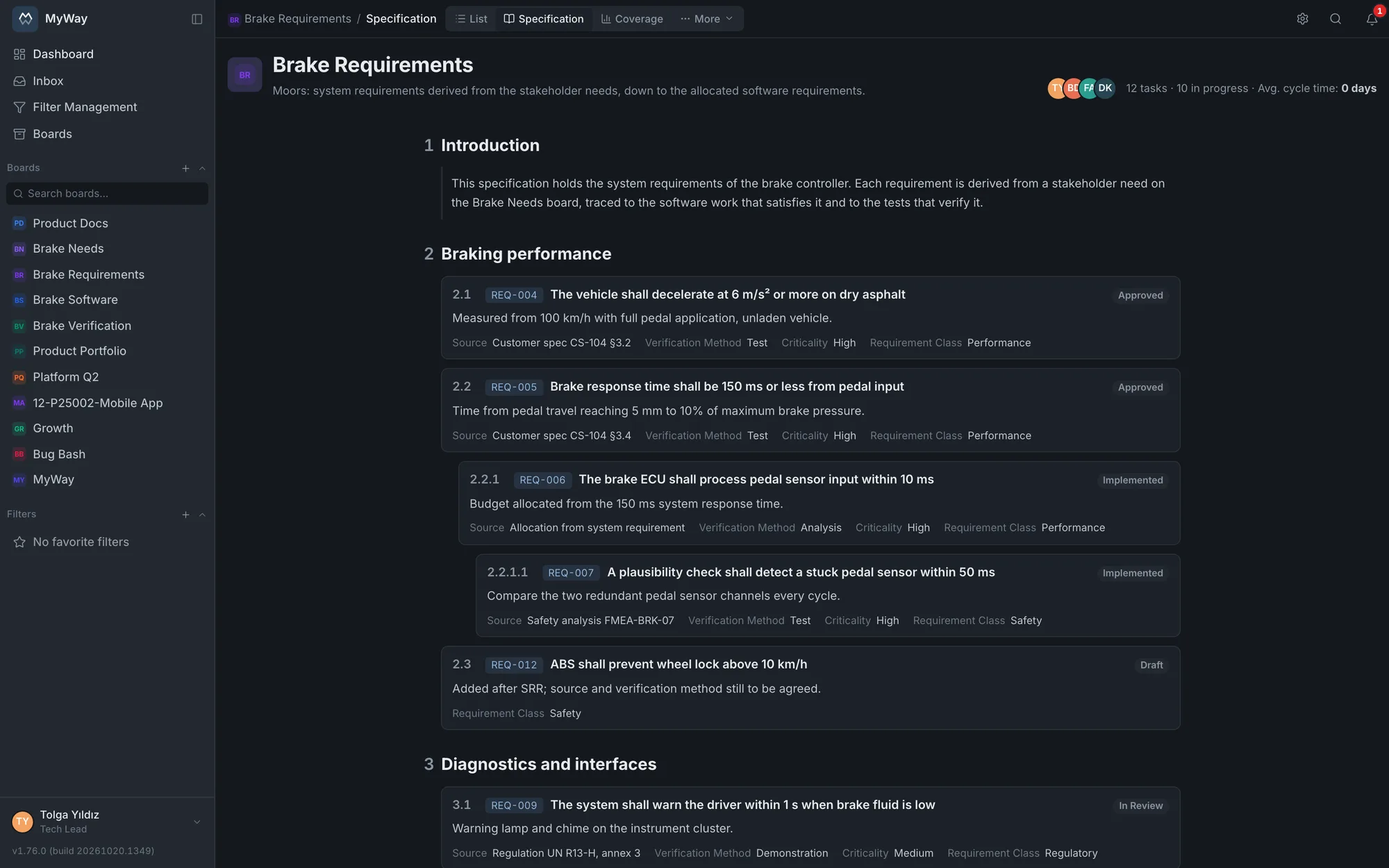
The Specification tab flows the board’s items in reading order like a document: Headings as headings with their section number, requirements with their section number, permanent key, title, status, description and attributes, and Information items as unnumbered paragraphs. Numbers are calculated from the hierarchy (1, 1.1, 3.2.1) and are not stored; siblings follow the numeric order of their permanent key. Information takes no number and does not advance the counter. The permanent key (REQ-12) never changes; the number changes when an item moves, the key does not. Clicking an item opens it in a side panel. The view is read-only and shows up to 5000 items.
- In the list view the "Section" column comes first; it sorts (3.2 before 3.10) and filters by prefix ("Section no., e.g. 2 or 2.1"): "2" brings section 2 and everything under it, "2.1" only that subtree
- Heading and Information are not requirements: coverage, the matrix and suspect links leave them out; they are included in a baseline
- On a Moors board the list export starts with the Section column
Traceability links
Four traceability link types tie a requirement to the outside. Each type can be picked in either direction; when adding a link the dialog spells out the chosen direction in a sentence ("The item you pick becomes the SOURCE of REQ-4 (REQ-4 is derived from it)"), and the linked items list shows the task’s short code before its title.
| Link | Reverse | Meaning and effect on coverage |
|---|---|---|
| derives | derived from | The source item derives the target (need → system requirement). The target counts as "sourced" |
| refines | refined by | The source item refines the target. The refining item counts as "sourced" |
| satisfies | satisfied by | A design or development task satisfies the requirement. The requirement counts as "implemented" |
| verifies | verified by | A test verifies the requirement. The requirement counts as "verified" |
- A parent requirement on the same board gives a source; a Heading or Information parent does not (that is document structure). Existing cross-board "parent of" links still count as a source. Text typed into the Source attribute does NOT count toward coverage: coverage looks at links and hierarchy
- General-purpose links (relates to, blocks, duplicates, causes) do not count toward coverage
- Adding a link needs "Edit tasks (fields, attachments, links)" on the board of the item it is added from, and membership of the other board. A link can be removed from either end; removing needs the same permission on the board of the item you remove it from
- Links can also be added while creating a task (the Linked Items section), or for many selected tasks at once with "Add link" in the bulk action bar
- You can search by link conditions: "Link" (type and direction, e.g. verifies / verified by; "none (no links at all)"), "Linked item" (e.g. REQ-12), "Suspect link" and "Subtask". They can be saved in a filter too (see Filters)
Coverage
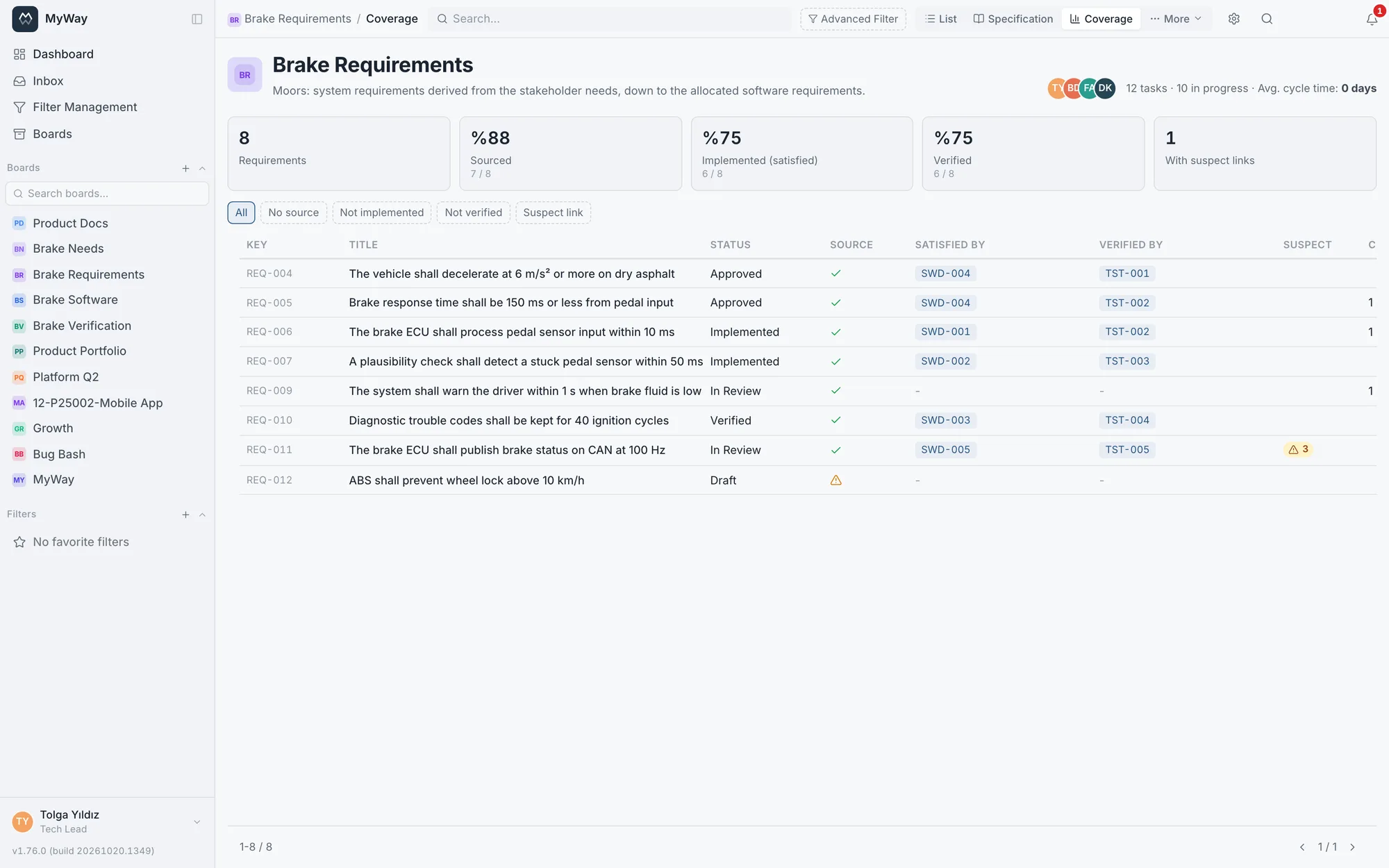
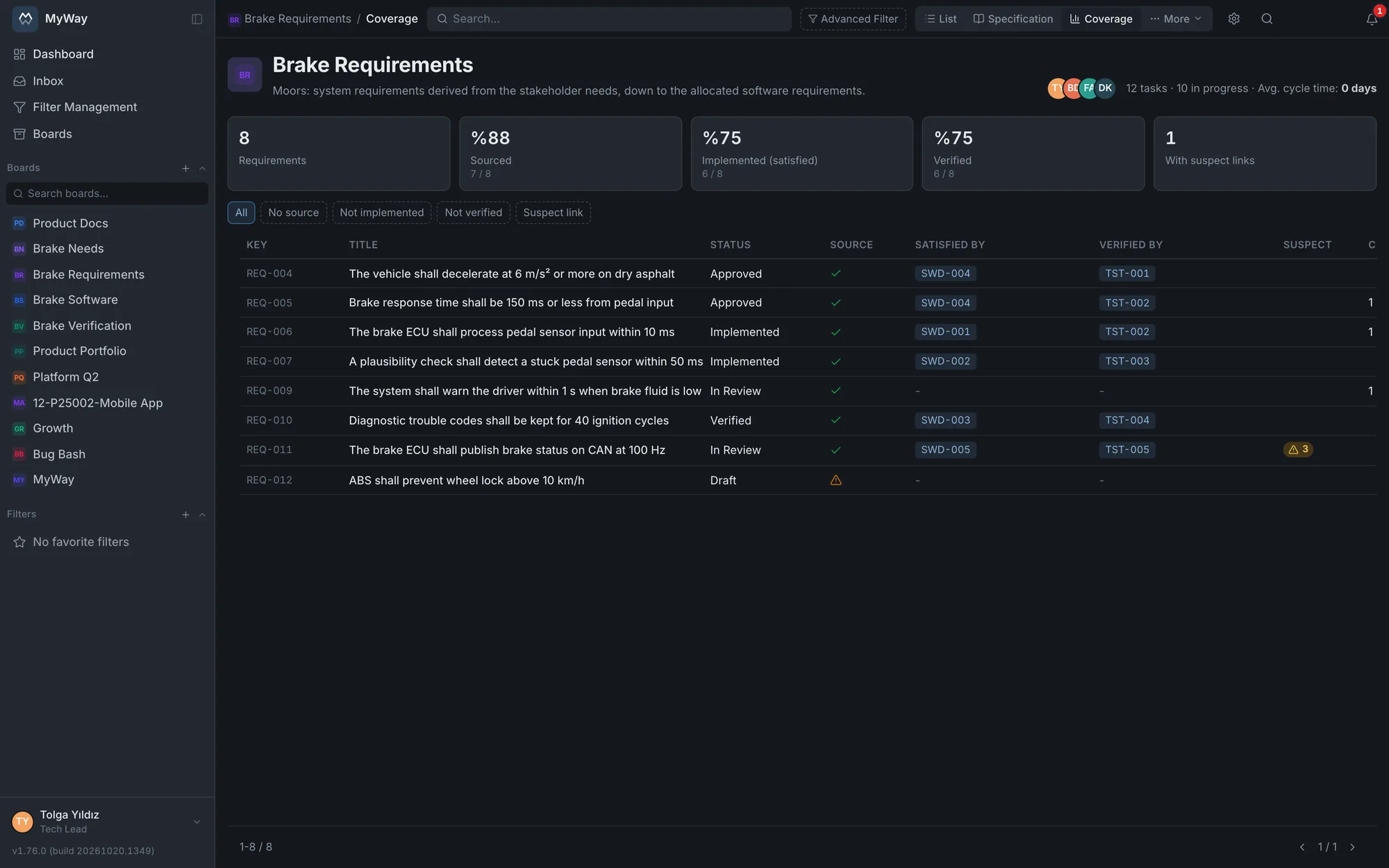
The Coverage tab gives the traceability state of the board’s requirements on one screen. The cards at the top show the number of requirements and three shares: sourced, implemented (satisfied) and verified, next to the number of requirements with a suspect link. Filters list the gaps in one click: No source, Not implemented, Not verified and Suspect link; "All" clears the filter. The table shows whether each requirement has a source, the items that satisfy and verify it (by short code), its suspect link count and its number of child requirements. The list is paged 50 rows at a time. The search and filters in the top bar (labels, assignee, status, custom field chips, advanced search) narrow the requirement set with the same rule as the List, and the shares at the top are calculated for the filtered set. Columns can be sorted, resized and filtered from their header (e.g. "Has a source" / "Unsourced", "Satisfied" / "Not satisfied", "Has suspect links", "Has child requirements"); "Clear column filters" removes them all. Hovering the icon in the Source column explains what it means.
- On a stakeholder needs board every requirement is the top level: no source is expected, the table says "Root" and it is left out of the sourced share. On a board with no level set (from before v1.76.0) the rule applies to the Stakeholder Need type
- Requirements in the Rejected status and Heading and Information items are left out of coverage entirely
- Linked items on boards you cannot access are not shown, only counted as "+N hidden"
- Clicking an item in a row opens the task in a side panel on the same screen, with its own board’s fields and rules; it does not open if you are not allowed to see it
- A "Traceability coverage" card can be added to a dashboard: it shows the three shares of a chosen Moors board as bars
Matrix
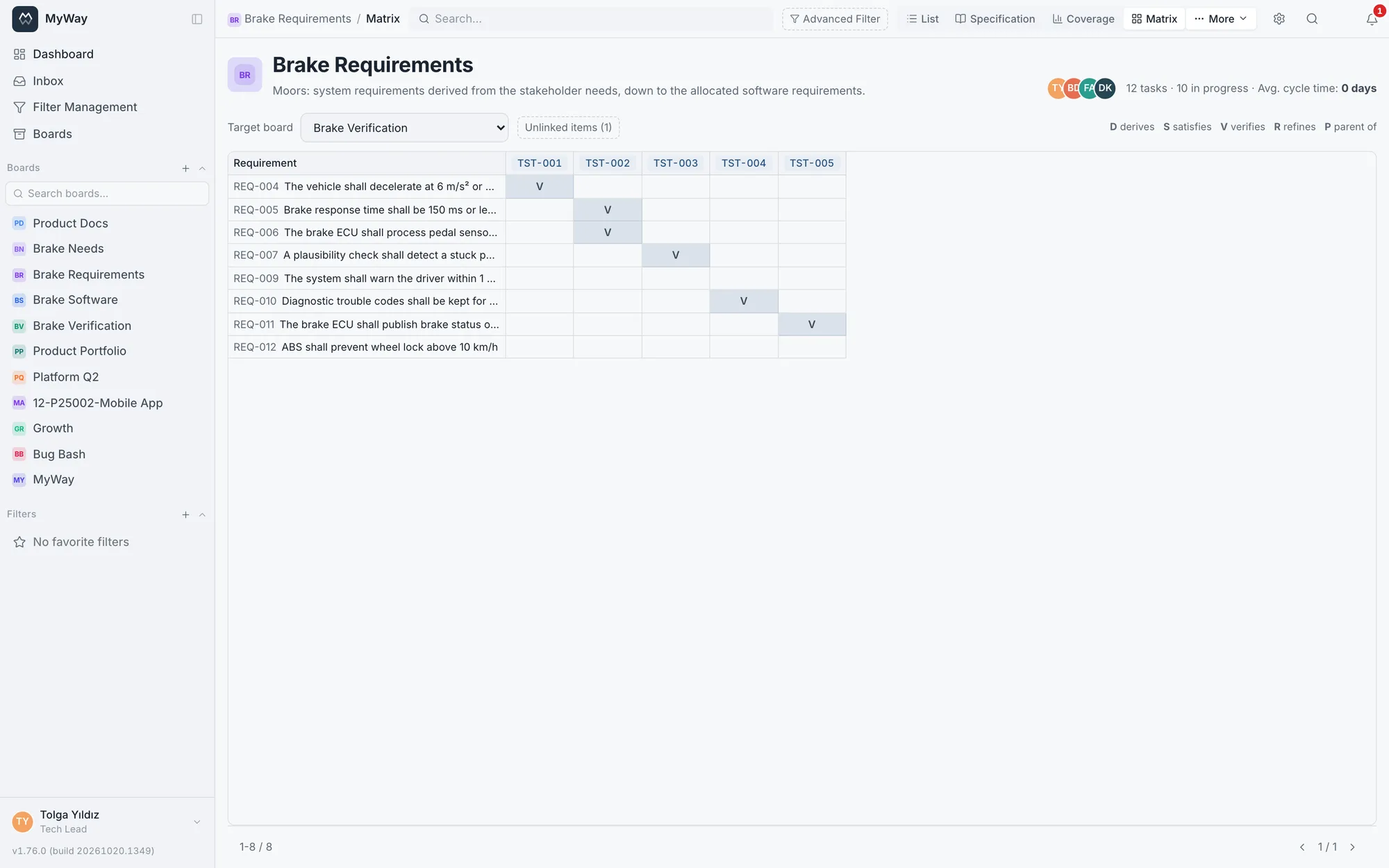
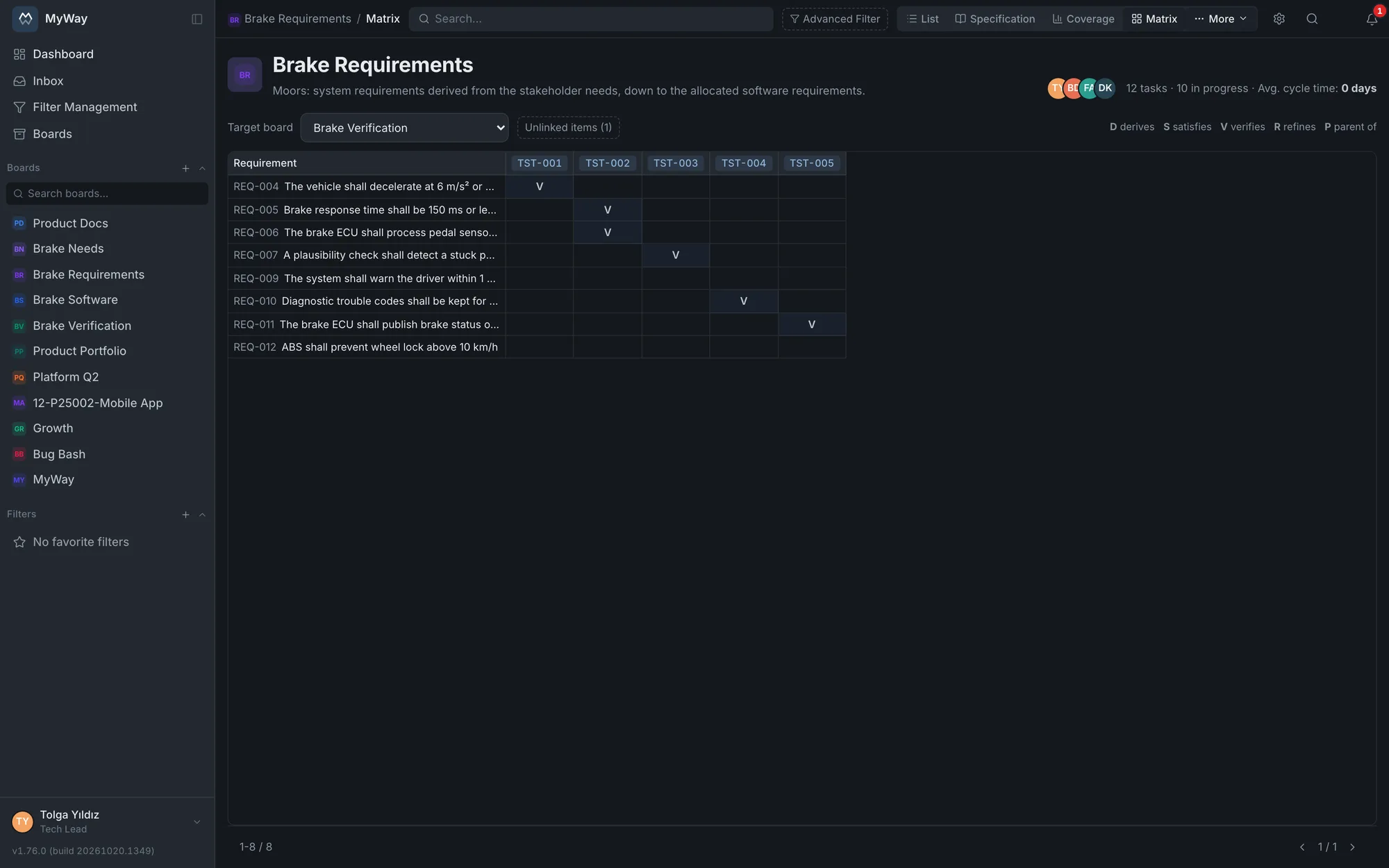
On the Matrix tab (in the "More" menu), rows are the board’s requirements and columns are the items of the board chosen under "Target board" (a test or design board, say) that link to these requirements. Each cell shows the initial of the link type (D derives, S satisfies, V verifies, R refines, P parent of, for existing links). The list is paged; the search and filters in the top bar narrow only the rows (requirements), while the columns and unlinked items still follow all requirements. Requirements in the Rejected status and Heading and Information items are left out of the matrix. The matrix shows up to 150 columns and the unlinked list up to 200 items; only boards you can access can be chosen as the target board. The "Unlinked items" button lists the items on the target board that link to none of this board’s requirements: that is how you find tests that verify nothing.
Suspect links
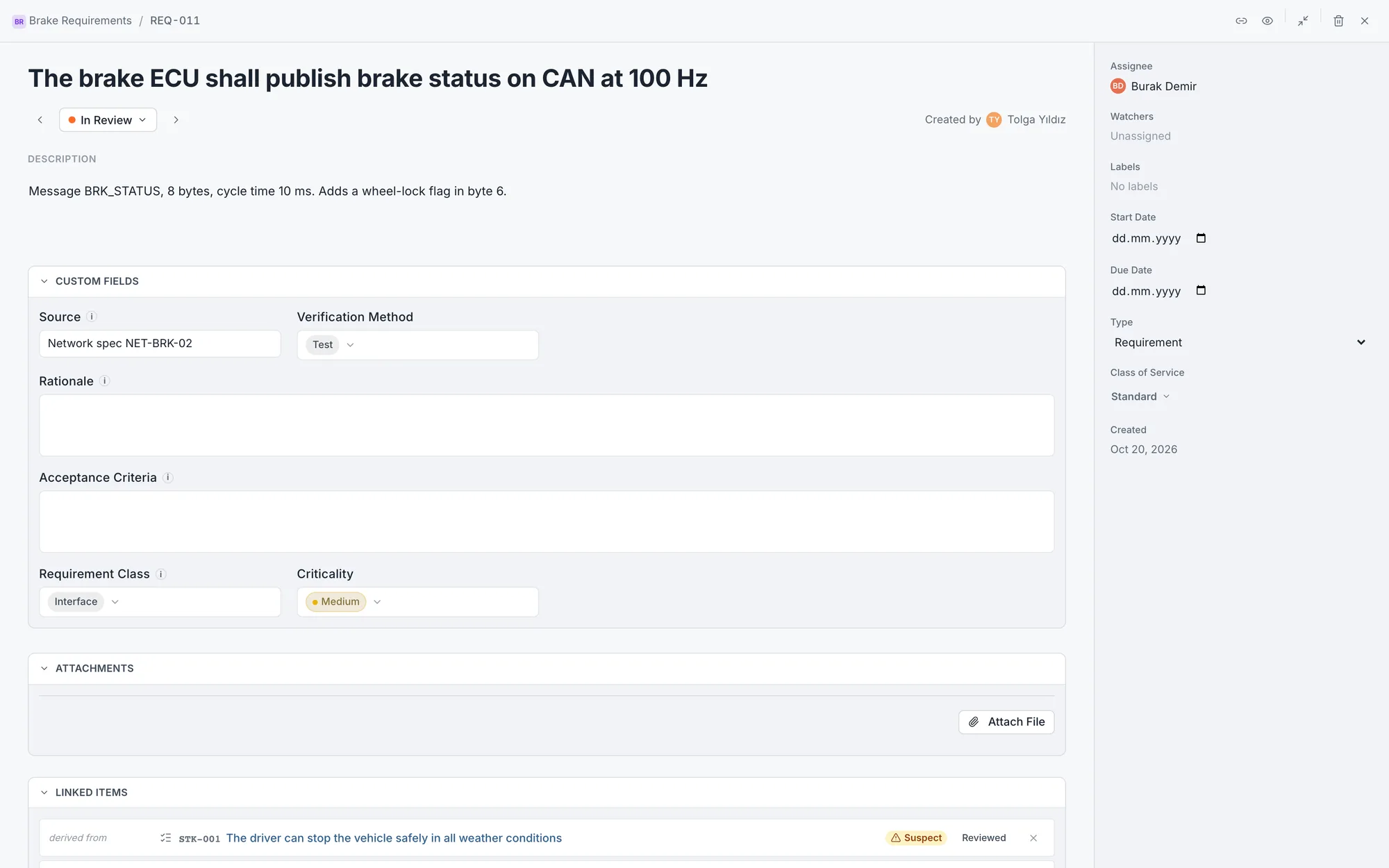
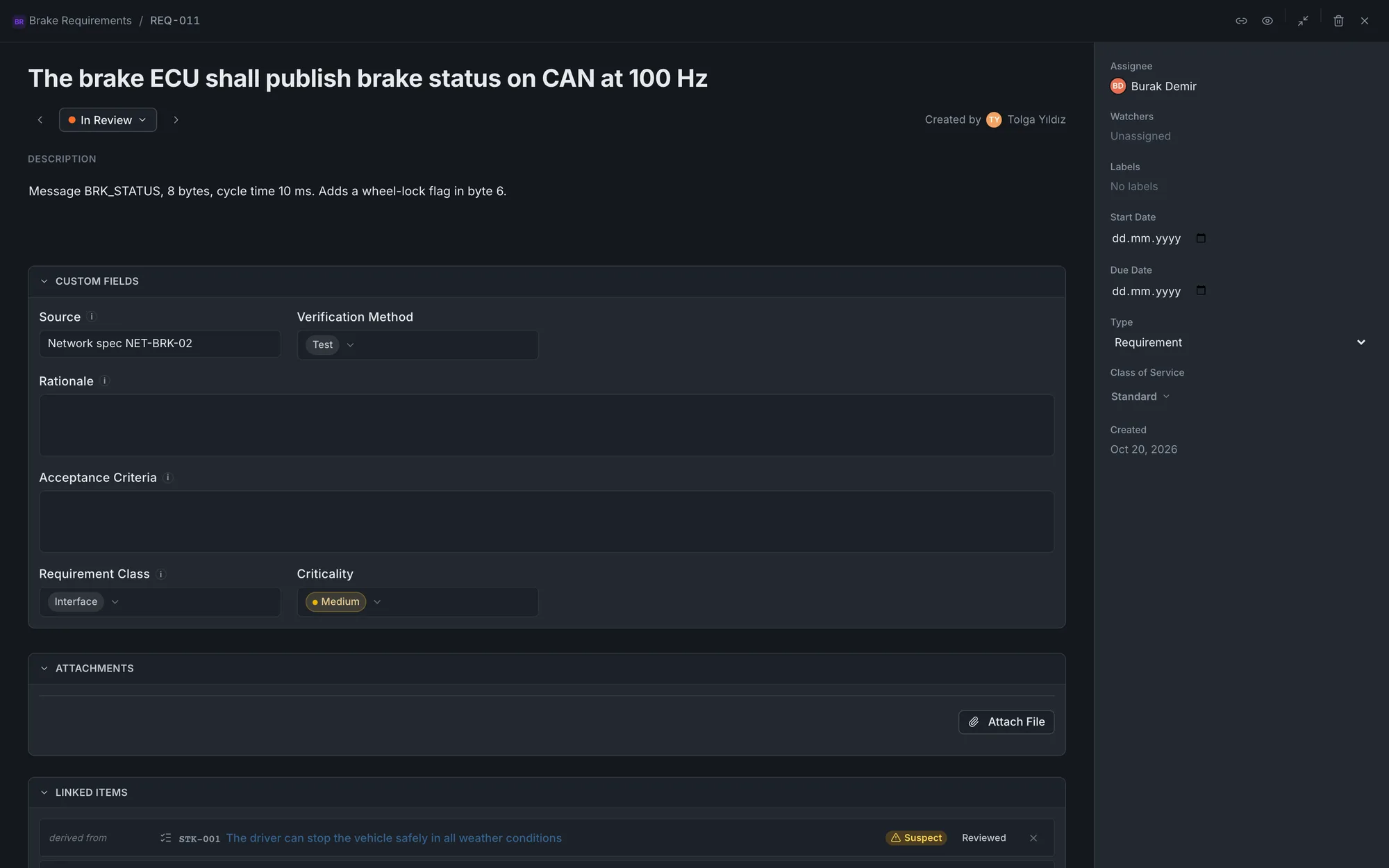
When one of the tracked fields of a requirement on a Moors board changes, the traceability links touching that requirement (derives, satisfies, verifies, refines) are marked "Suspect". A badge appears on both ends of the link, and its hint says what changed. The link is not invalidated automatically; the decision stays with a person: whoever reviews the link clears the mark with "Reviewed", and a "reviewed a suspect link" entry is written to the task history. Reviewing needs "Edit tasks (fields, attachments, links)" on the board of whichever end you review it from.
- Tracked fields are chosen under Board Settings > General > "Fields tracked for suspect links". The default rule is title, description and the requirement attributes (fields whose key starts with req-, including ones added later). "Selected fields" narrows the list and "Back to default" brings the rule back; with no field selected, no link on the board is marked suspect. The list is changed by whoever has "Board configuration: fields, issue types, versions, templates, calendar". Title, description and custom fields can be tracked; a status change does not mark a link suspect
- A change to a Heading or Information item marks no link suspect; those are not requirements
- Parent/child links and general-purpose links are never marked suspect
- On the Coverage tab, the "Suspect link" filter lists requirements with a link not yet reviewed; the "Suspect link" search condition does the same
Baselines
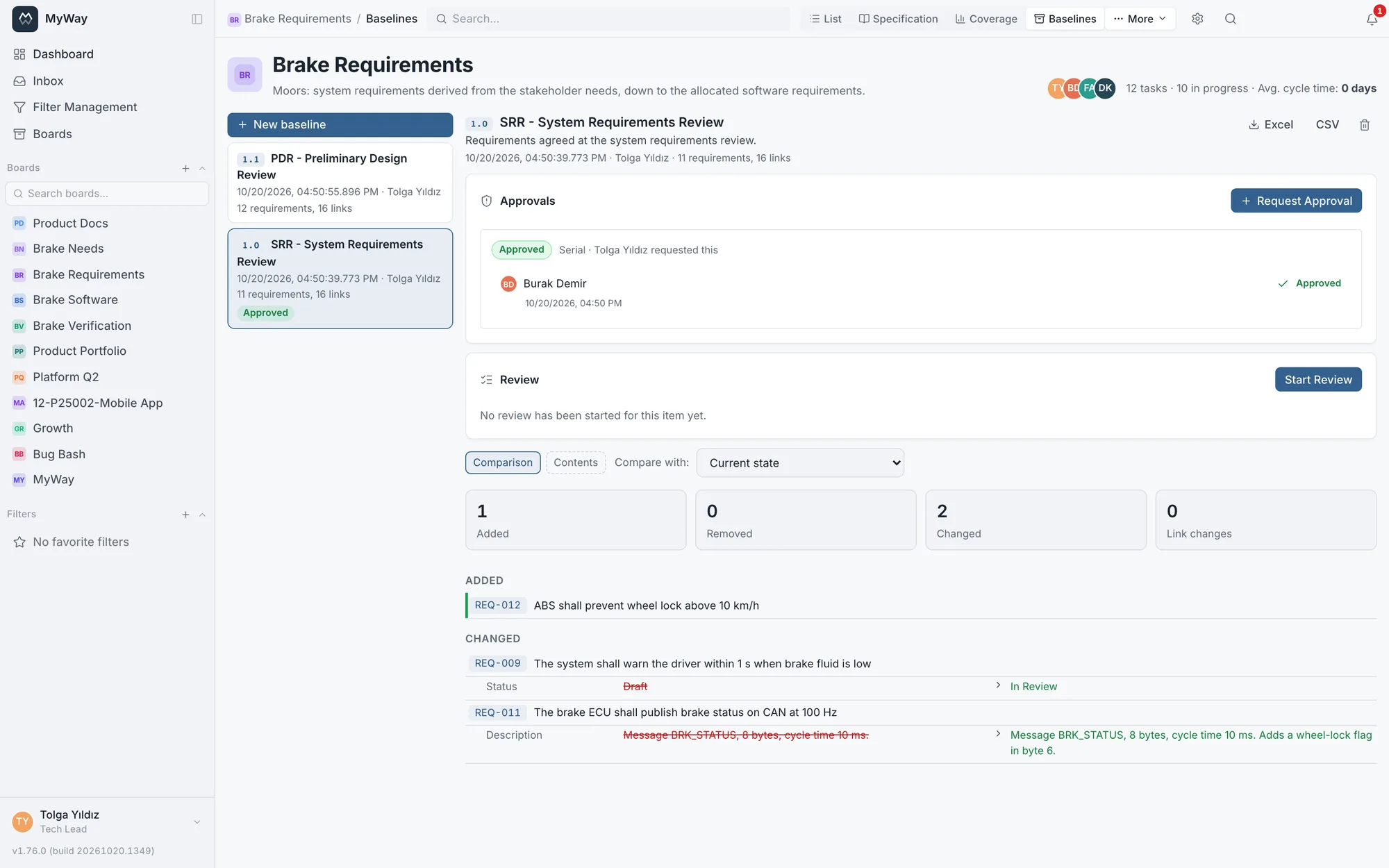
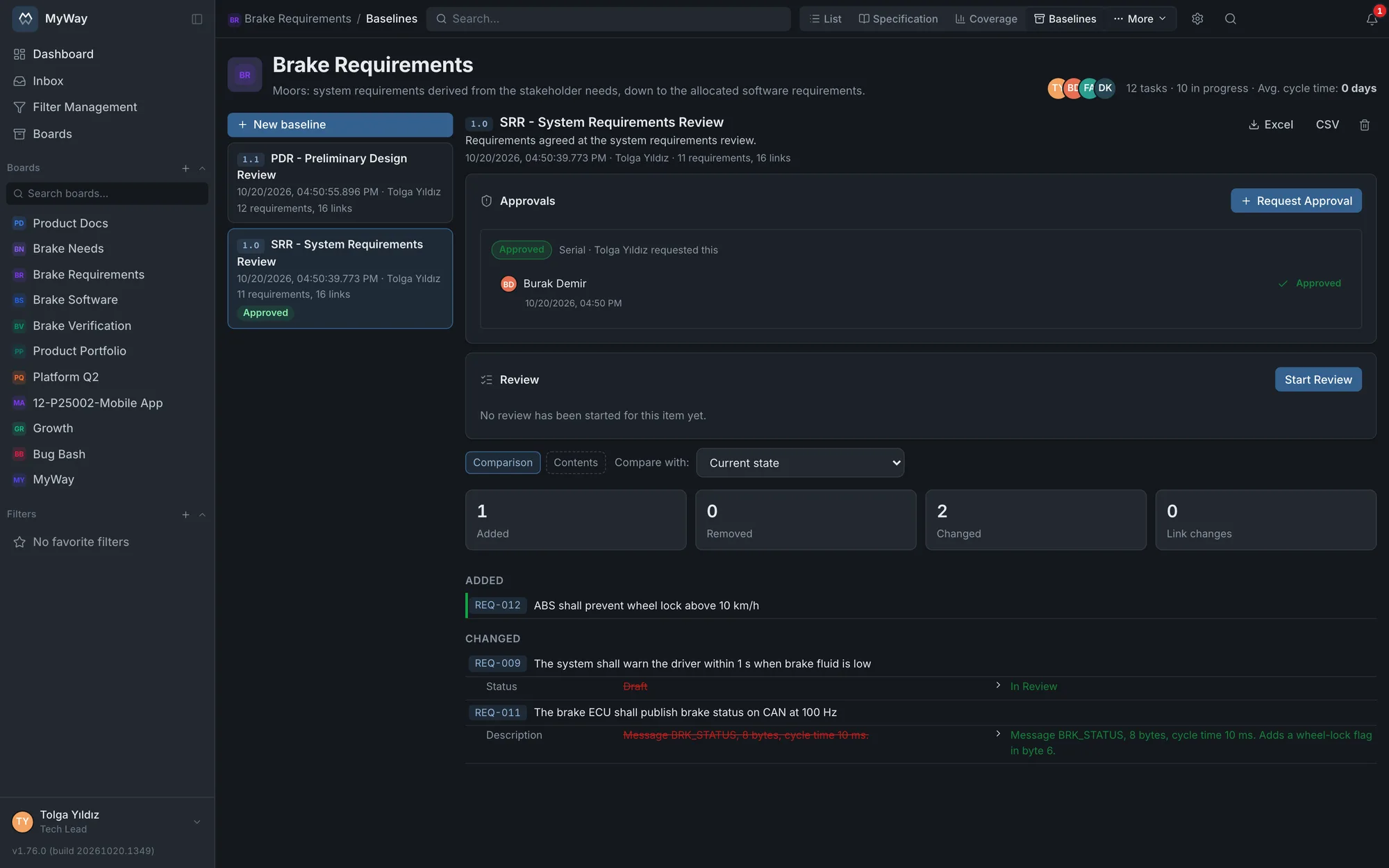
On the Baselines tab (in the "More" menu), "New baseline" stores the current state of every item on the board and its links, unchangeably: a name ("SRR approval", say), an optional description, who created it and when, and a version code. The first baseline is 1.0; when creating one, "Minor change" bumps the minor number (1.0 → 1.1) and "Major change" the major number (1.4 → 2.0). The base is the highest code on the board; codes are unique per board and never change. The snapshot carries each item’s title, description, status, type, parent requirement, section number at that moment and attributes (req- fields and any other fields tracked for suspect links), plus its traceability and parent/child links. A baseline holds up to 5000 items (Heading and Information included); on a larger board a baseline cannot be created. The search in the top bar narrows the Contents and Comparison rows by key or title.
- Comparison: the selected baseline is compared with the "Current state" or with another baseline. The numbers of added, removed and changed requirements and of link changes sit at the top; below, each changed requirement shows which field changed from what to what; a section number change shows as a field change too
- The Contents tab lists the items in the baseline. Contents and comparison download as Excel or CSV; the file name starts with the version code
- Creating and deleting a baseline needs the "Board configuration: fields, issue types, versions, templates, calendar" permission; reading one only needs board membership. Creation and deletion appear in the audit log as "Baseline created" and "Baseline deleted"
Reviewing and approving a baseline
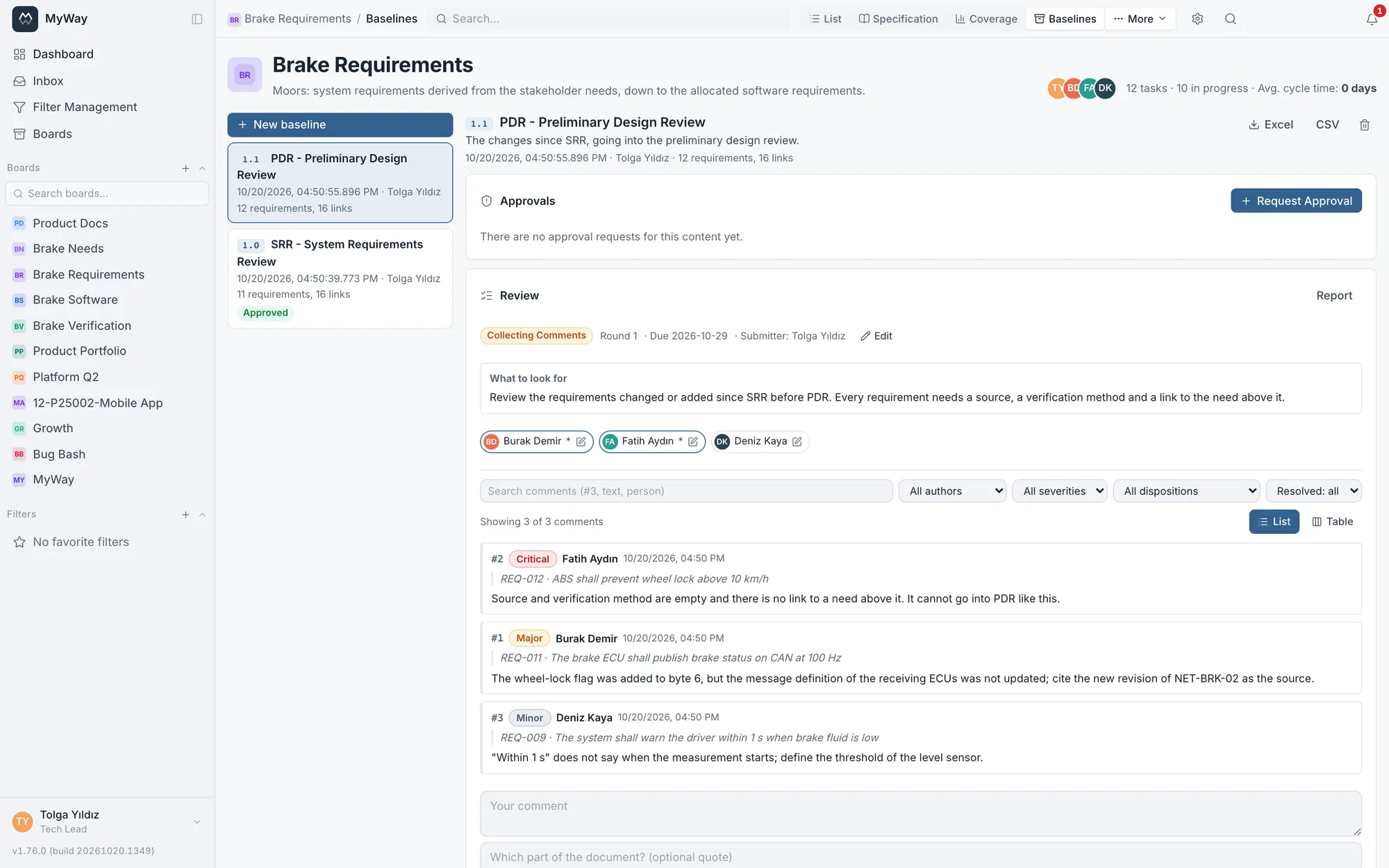
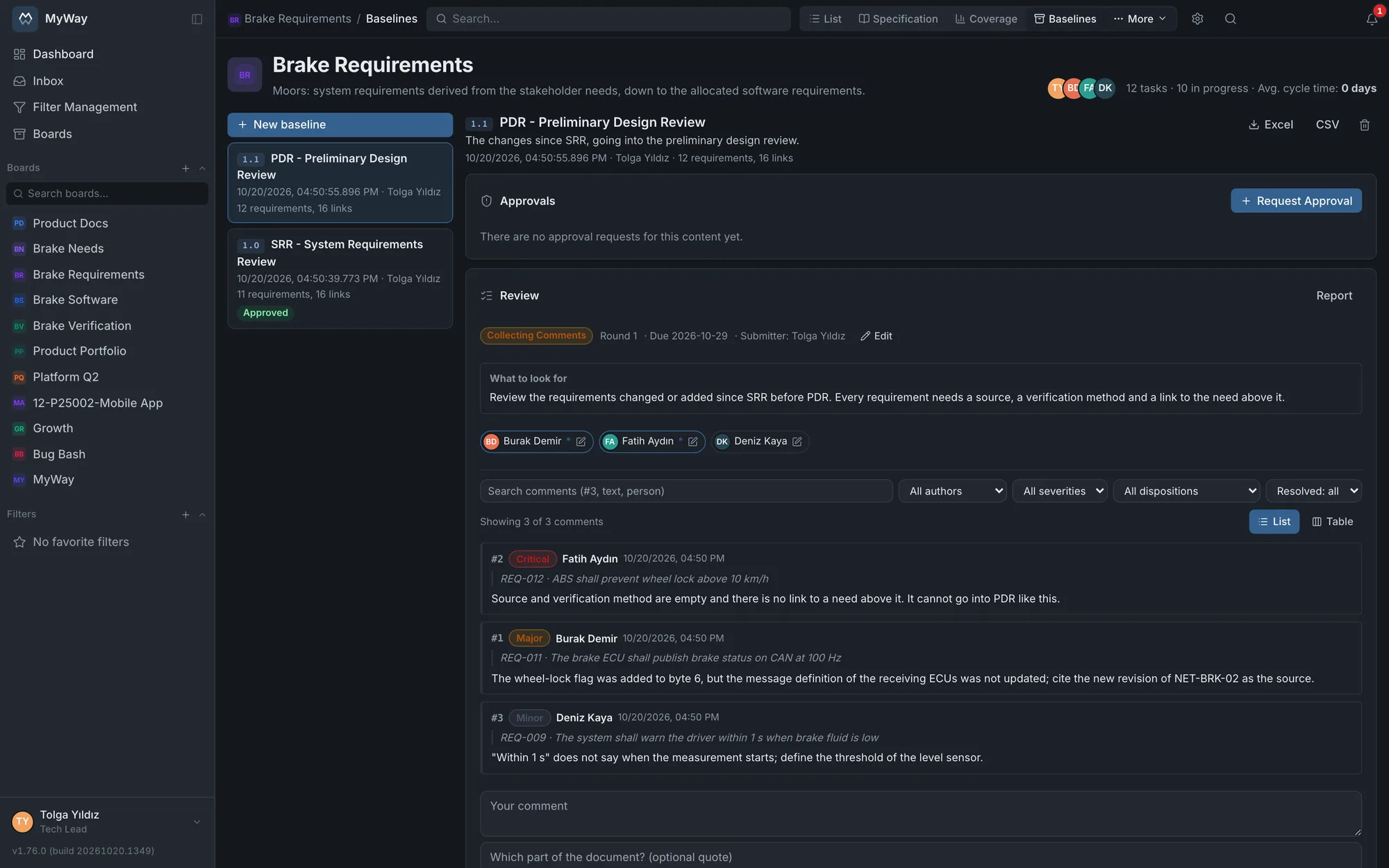
Two panels sit under the selected baseline: Approvals and Review. "Start Review" sends the baseline to a multi-round formal review like documents: you choose what to look at, a due date and the participants, comments are written with a severity (Critical, Major, Minor) and the presenter decides on each one. A comment is written on the whole baseline or tied to a single requirement by picking "REQ-12 · title" in the quote box. The flow, report and decisions are the same as a document review (see Formal review). Starting a review needs board membership and the "Request approval" permission.
- Approval: "Request Approval" sends the baseline through the same chain as document approval (serial or parallel approvers, the approval queue, notifications). The approval notification opens the baseline directly. On a Moors board, the request and decide approval permissions appear in the role settings. Decisions are made on the baseline opened from the approval notification, or in the "Approval Queue" tab of any docs space; the queue lists the person’s pending decisions across all boards, and a baseline row shows the type "Baseline". A pending request is cancelled by its requester or by someone with "Manage members and roles"
- Order: the order of review and approval is chosen under Board Settings > General > "Review and approval order for baselines": Parallel (the default, the two are independent), "Review first, then approval" (approval can only be requested once a review is complete) or "Approval first, then review" (a review can only start once an approval has been given). Whoever has "Board configuration" changes it
- A baseline with a pending approval or with a review (ongoing or completed, not cancelled) cannot be deleted; an approved baseline can never be deleted, since it is the record of what the approval accepted. A baseline with no review (or only a cancelled one) whose approval was rejected or never requested can be deleted
Moors supports a process; it does not produce a certificate of conformity to a standard. It makes it easier to build the traceability that a standard such as ISO/IEC/IEEE 29148, ISO 26262 or DO-178C asks for, but it does not replace a conformity assessment. There is no ReqIF exchange or direct import from DOORS; requirements are imported and exported with Excel or CSV (see Import & export). For an end-to-end setup see the Tracing a requirement to its test scenario.