Notifications & Inbox
Watching, @mentions, assignment, status and due-date notifications in one place.
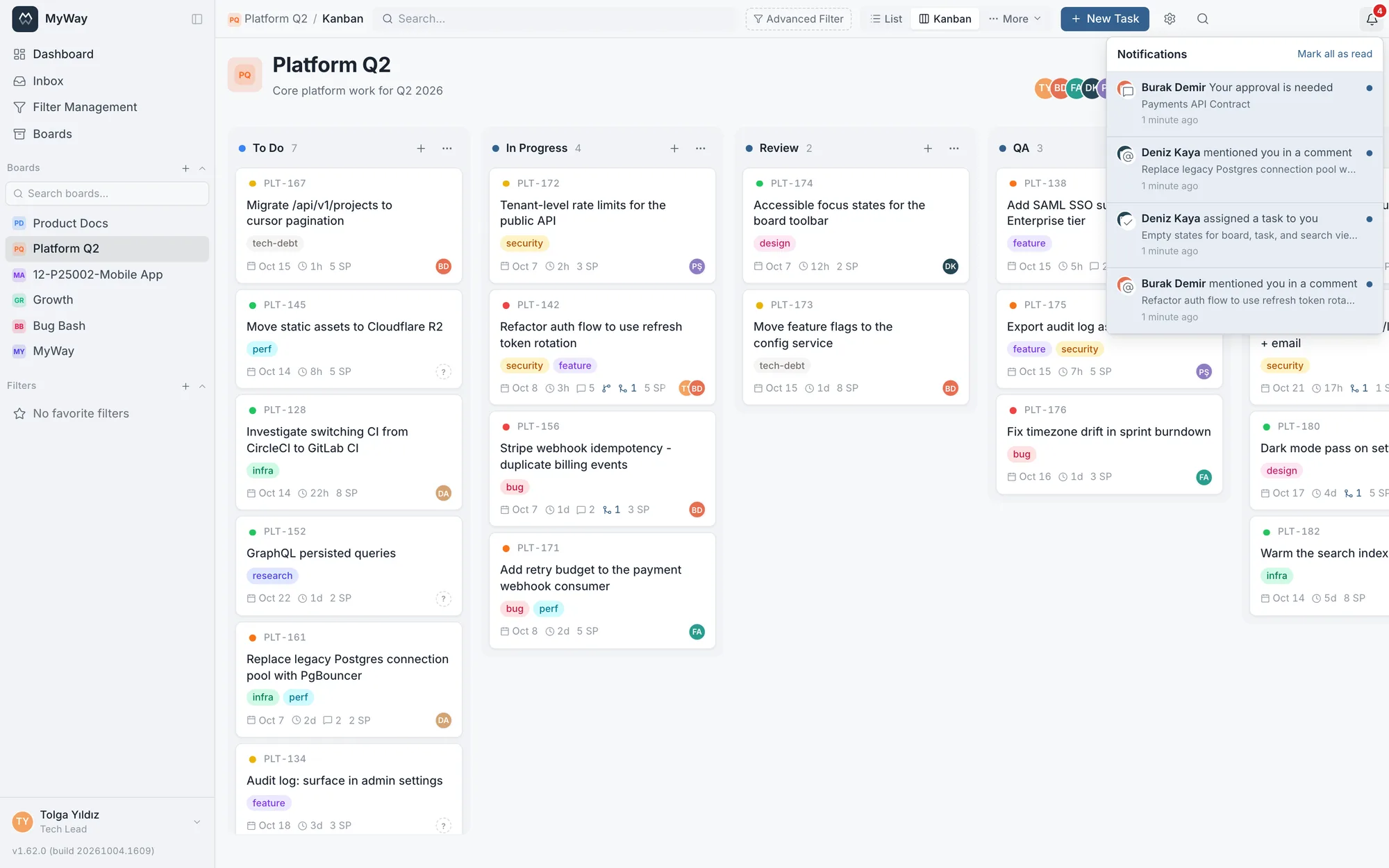
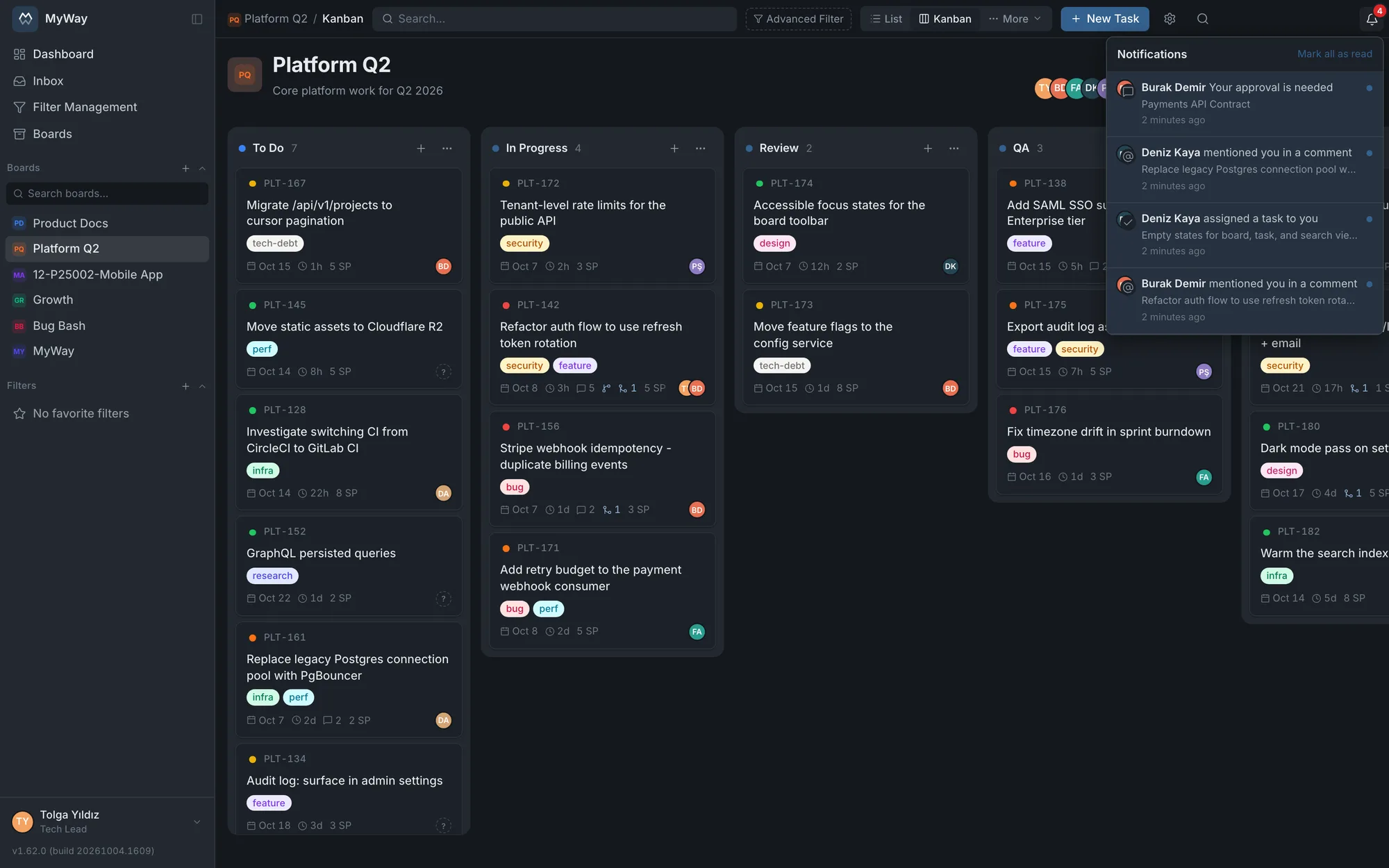
Notifications meant for you gather in the bell on the top bar: assignments, @mentions, comments and changes on items you watch, status changes, due dates, review and approval requests. The bell shows the unread count and refreshes every minute. The Inbox page in the sidebar is a separate feed: it shows the latest comments, up to 20, on tasks across the boards you are a member of (directly or through a group). A workspace admin does not see comments from boards they are not a member of here, in quick search (Ctrl+K) or in dashboards either; only the superadmin sees every board.
- Watch a task or docs page. Get notified on changes
- Mention someone by typing @user in a comment
- Clicking a notification marks it read and takes you to the task, page or board; "Mark all as read" clears them all at once
- For changes made by automation (GitLab moving a task, for example), the actor shows as "System"
- Due-date and review reminders show "Reminder" instead of a person’s name: a scheduled job sends them, so they do not read as if a person sent them
Which events create a notification
There are sixteen notification types and the table lists every one. Preferences are set in eight groups rather than type by type (see below).
| Notification | When it arrives |
|---|---|
| Task assigned to you | You became the assignee of a task. |
| Your name was set in a task field | You were added to a person-type custom field (Reviewer, Tester, Requester). The notification carries the FIELD NAME; saying "you were assigned" would mislead, since the assignee is a different field. It only goes to a newly added person. |
| You were mentioned | A comment mentioned you or a group you belong to with @. Both task and page comments. |
| A task you watch got a comment | There is a new comment on a task you watch. |
| A page you watch got a comment | There is a new comment on a docs page you watch. |
| A page you watch was updated | The content of a docs page you watch changed. |
| A task changed status | A task you watch, are assigned to or reported moved to another status. |
| Due tomorrow | A task is due tomorrow. Custom date fields marked "treat as a deadline" are reported separately too. |
| Overdue | The date has passed and the task is still open. |
| Added to a board | You were added to a board as a member. |
| Invited to a review | You were invited as a participant to a formal review. |
| Review reminder | The deadline of a review you joined is approaching and you have not commented yet. |
| Review overdue | The deadline of a review you joined has passed, comments are still being collected and you have not commented in this round. Sent once per review. |
| Review changed stage | The process moved to its next step (from collecting comments to disposition, for example). |
| Your approval is due | An approval chain is waiting for your decision. |
| Your approval request was decided | The approval you requested was approved or rejected. |
Status changes and due-date warnings go to the task’s watchers, assignees and reporter. Whoever made the change is not notified about their own action. The "tomorrow" and "overdue" warnings are each sent once per task; changing the date later does not repeat them.
Mentioning a group
You can mention a group in a comment with @team-name: every member of the group who has access to that board gets a notification. Each group gets a mention handle derived from its name ("Product Team" → @product-team); typing @ suggests groups alongside people. Everyone always gets the in-app notification; if the group has more than 25 people, no email is sent for the group mention at all, to avoid flooding inboxes. People mentioned directly and watchers are not affected by this limit.
Notification preferences
Each user decides under Settings > Notifications how they want to be notified. Preferences come in eight groups; each group has its own in-app (bell) and email switch, and each channel also has a master switch. You can, for example, keep status changes in the bell but turn their emails off. Email is only sent in installations where you connected your own mail server (SMTP), and it goes out in the recipient’s own language.
| Preference group | Covers |
|---|---|
| Assignment | Task assigned to you, added to a board |
| Named in a task field | Your name was set in a task field |
| Mention | You were mentioned |
| Comment | A task or page you watch got a comment |
| Status | A task changed status |
| Due date | Due tomorrow, overdue |
| Review | Invited, reminder, overdue, stage changed |
| Approval | Your approval is due, your request was decided |
"A page you watch was updated" is not tied to any switch: it always appears in the bell and has no email.
Account emails such as password reset and invites are independent of these preferences and are always sent. A user cannot turn off their password reset email.
In installations without email sending the product works fully: notifications stay in-app, invite links are shared from the screen, and an administrator resets passwords. See Installation (self-host) for SMTP settings.
Email notifications
The product works fully without email; in that case notifications appear only in the in-app bell. If you configure your own SMTP server, assignments, task-field notifications, mentions, comments, status changes, due dates, reviews and approvals are emailed too; page updates appear only in the bell. Each user decides under Settings > Notifications which events arrive in the bell and which by email; transactional messages such as password reset and invitations are not subject to those preferences.
Due-date reminders are sent by a scheduled job that runs once a day; the installer sets it up itself (see Installation). A superadmin sees under Settings > Health when the job last ran. If it does not run, every other notification still works; only due-date reminders are not sent.
Commenting on a docs page or changing its content makes you a watcher of that page. On tasks, being assigned does not make you a watcher: the assignee and reporter already get status and due-date notifications, but comment notifications on a task go only to watchers and people mentioned. You can unwatch any time. Watching requires no permission: adding yourself to the watchers is not editing the task, it is your own notification preference. If a person-type custom field has "People in this field watch the task" turned on, whoever is named in it joins the watchers as well and starts receiving status and due-date notifications; they appear in the list and can remove themselves.